
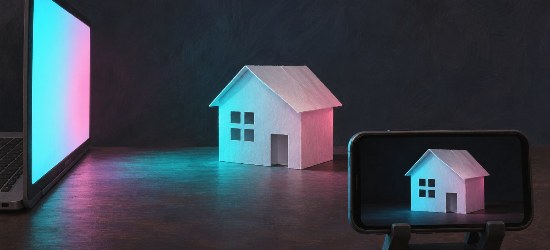
Use Screen Light for Paper Crafts You Photograph With a Phone
A little white paper house can disappear against a pale desk in an ordinary phone photo. Before adding more decorations, try changing the light that falls on it. An existing computer or tablet screen, placed just outside the picture, may give one side of the paper a gentle colour.
Start with one small object and one still colour. You need the paper craft, a screen that can face it, and a separate phone to take the photograph. The illustrations are AI-generated examples. This is a suggested setup to try, rather than a report of a completed photography test.
Make room for the light beside the house
Put the paper house on a plain surface with an uncluttered background. Choose a small piece whose folds you can see easily. Dim a nearby lamp or move away from a bright window so the screen has less room light to compete with. You should still be able to see where everything sits.
Place the screen to one side of the house, angled so its face points toward the paper. Put the camera phone in front of the house. Look through the phone and move the screen just beyond the edge of that picture. It is lighting the object, rather than appearing behind it as scenery.
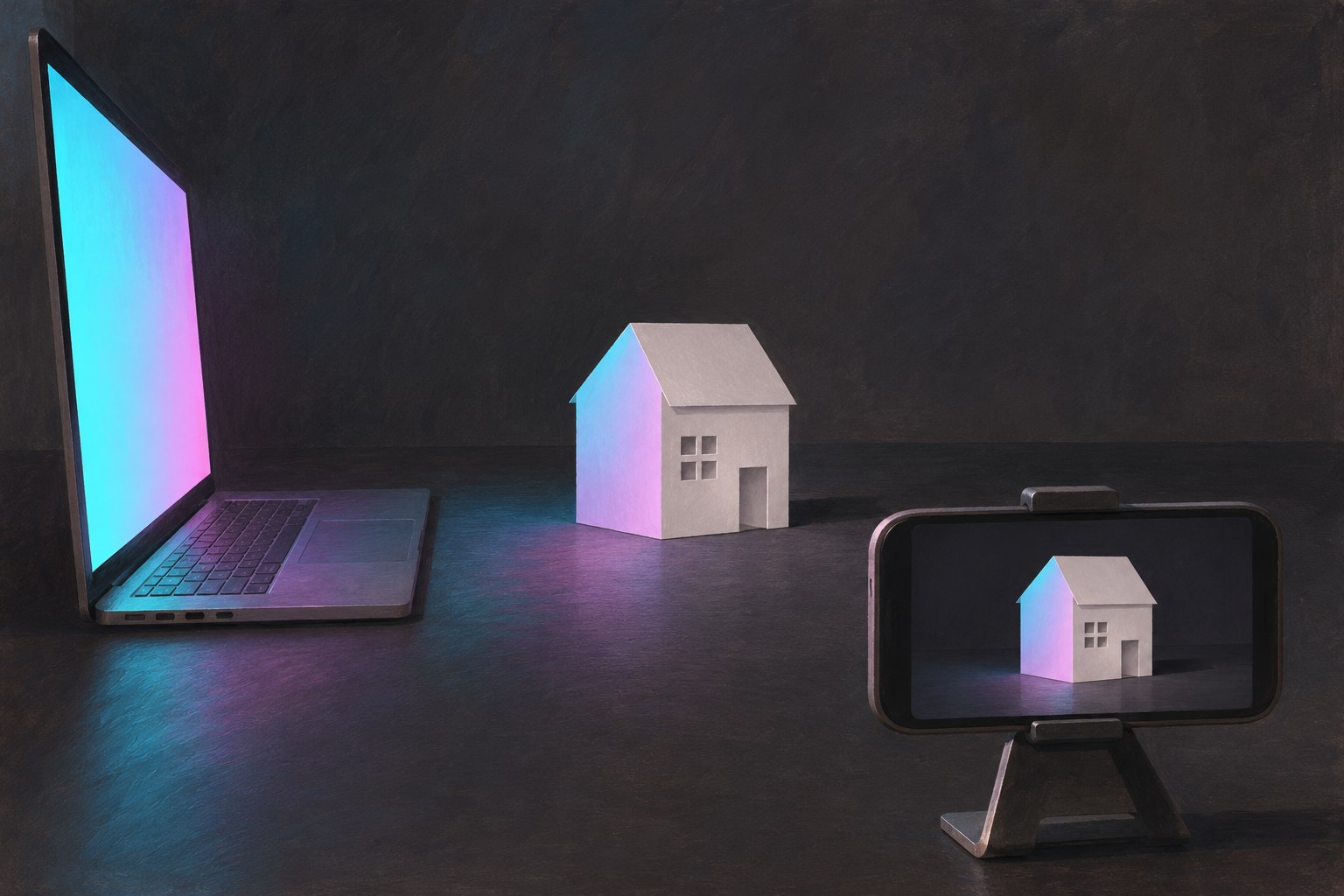
The screen faces the paper from the side and stays outside the phone camera’s final frame.
Keep the phone steady on a stand or another stable support. Leave enough room to reach the screen without bumping either the camera or the craft.
Try one plain colour first
Make a blank slide or image filled with pale cyan in an app you already have. Open it full-screen on the lighting device. Start with a brightness you can adjust easily, then take a normal phone photograph. There is no special exposure time to copy.
Look at the photograph, not just the glowing screen. Can you see a touch of colour on the side facing it? Are the roof fold and the far side still recognisable? Move the screen closer if its contribution is hard to see, keeping it out of the camera frame. A smaller scene may be easier to light than the whole desk.
Take another picture after changing just that distance. If the near side becomes a bright patch with no paper texture, lower the screen brightness or move it back a little. Keep the position that lets the folds remain visible.
Change the colour without rebuilding the scene
Replace the cyan with a soft pink and take another photograph from the same phone position. The house stays where it is; only the light source changes. You now have two versions to compare without repainting the craft or moving it into a different background.
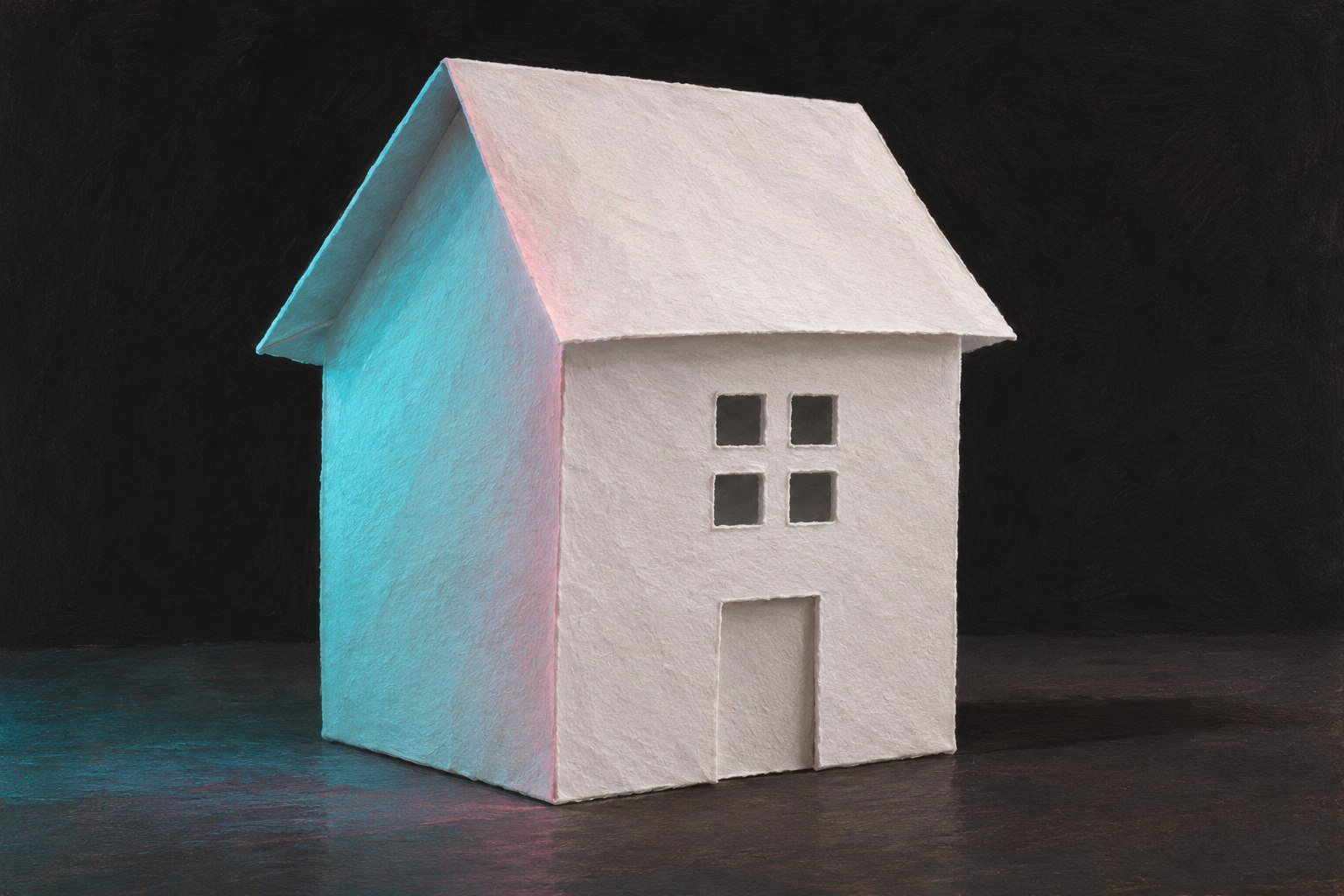
An example of the intended colour on the paper, rather than light coming from inside the house.
Choose the version in which the colour adds something you like while the object still looks like your own paper house. The effect may be subtle. Different screens and camera settings can respond differently, so a clearly coloured example illustration is not a promise of the same result.
Let the light change slowly, if you want to
Once a still colour works, you can try a short abstract colour clip on that same screen. Use broad, slowly changing areas of cyan and pink, without shapes, lettering or flashing. Keep the screen facing the object and take a photograph when you like the colour reaching the paper.
The moving clip is optional. If it makes the light unpredictable, pause on a frame or return to the plain slide. This setup is not a projector: you are borrowing the screen's glow, not trying to cast a sharp pattern onto the house.
Before packing away, enlarge the photograph on your phone. Check the paper edge, the roof crease and the background. Save the picture you prefer, along with a quick note of where you placed the screen, so you can try a second little craft another day.
Comments
0